
Set Up Ticket Managers
Ticket Managers
Allocating Ticket Managers to your event tickets is a great way of sharing the admin load in the lead up to an event. A Ticket Manager is able to access and edit all the entries for the ticket or tickets you give them access to. This help page is all about allocating Ticket Managers. Note: there is a separate page for Ticket Managers to walk through all the functionality they can utilise here.
Ticket managers are particularly useful when you have large groups attending your event. To allocate a Group Leader access to their own group’s tickets can help eliminate back and forth communication when changes to registration happen or unpaid tickets need to be followed up.
Ticket managers can, on their nominated ticket/s:
- view details for attendees – names, contact details, check whether the ticket is paid etc.
- edit details for attendees – great for fixing typos, updating with new phone number, email etc.
- cancel registrations – note, payments and invoices are managed in Stripe or via deposit to your bank account, so refunds need to be handled separately
- manage check-in at your event
How to allocate Ticket Managers
If the person you would like to allocate access to is already set up as a user and connected to your organisation in tickets.org.au, you can simply add them in the process below and all the hard work is done – simple!
If the person you would like to allocate access to is not already a user in tickets.org.au, you need to add them as a user and connect them to your organisation.
Simply add their email address as below and they will receive an email from us inviting them to become a user of tickets.org.au. Once they have done that, you can continue to the Ticket Manager access steps.
If the person you are allocating access to is the leader of a small (or large) group attending your event, you may want to set up a ticket using a coupon code specifically for their group. That way they will be able to see the details for their group only and not for everyone attending your event. Find out more here.
Add User to your Organisation
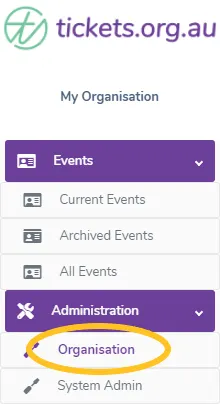
From the Administration menu on the left, click ‘Organisation’.
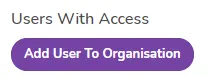
Then click the purple ‘Add User to Organisation’ button.
Follow the prompts and select access level and type in the email address.
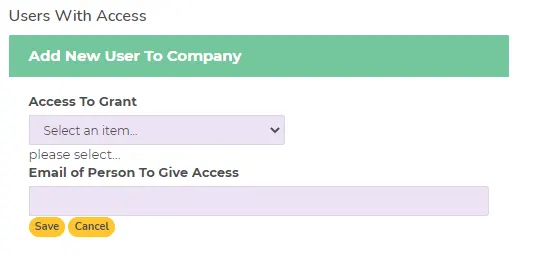
Make sure to hit the save button!
If they are already a user of tickets.org.au for another organisation they will immediately have the access you have given them.
If they are not currently a user of tickets.org.au, they will be sent an email inviting them to create a profile. Once they have done so, they will have immediate access to your organisation as set up by you.
Once your user is set up in your company, you can allocate them as a Ticket Manager to any ticket you create in any event.
Allocate Ticket Managers
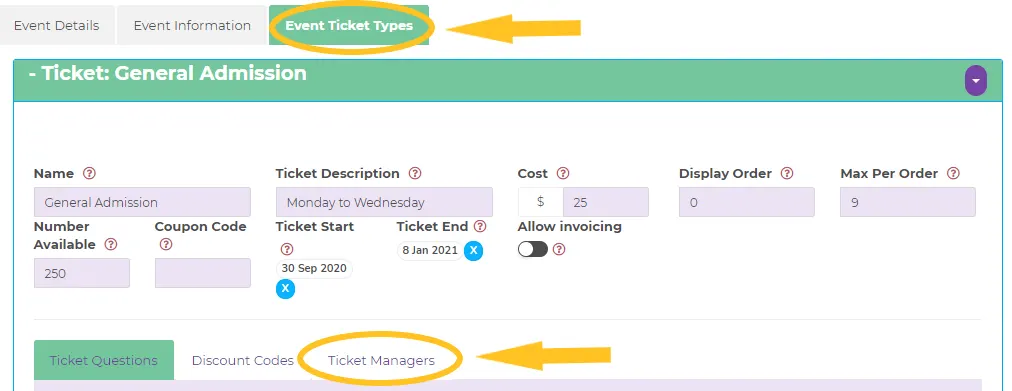
Make sure you are in the ‘Edit Event’ screen, click on the ‘Event Ticket Types’ tab, then select the ‘Ticket Managers’.
You will see every user in your organisation who has been given Ticket Manager status. Simply toggle the bar next to their name to give them access to the ticket in question. The toggle bar will be green for all ticket managers with access.
Note: you can add and remove ticket managers anytime, provided they are a user of your organisation, with no impact on your tickets.
Has this answered your question? If not, head back to the Help Centre, jump on the chat, or send us an email at [email protected].